Slideshow Master Pro
INTRO
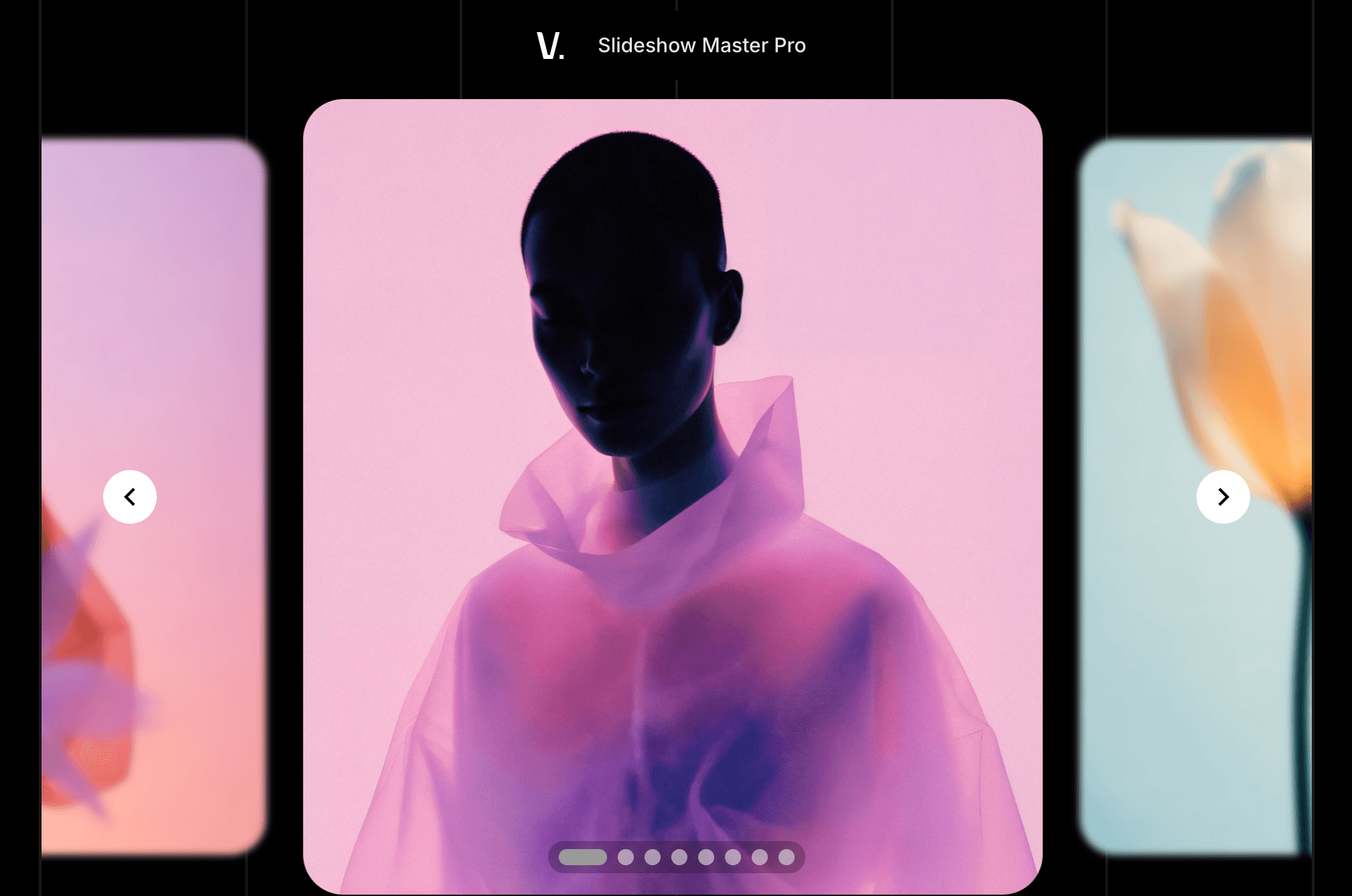
The ultimate gallery component for Framer: three hybrid layouts (Slideshow with animated side peek previews, continuous Ticker, infinite Masonry loop). Link CMS Gallery or Canvas components, customize everything visually—dots, arrows, transitions, effects—no code needed. Momentum-based drag, mouse wheel, keyboard, advanced fade transitions, all built-in.
One component. Three layouts. Animated context peeks. Infinite possibilities.






CARATTERISTICHE CHIAVE
Three Hybrid Layouts — Slideshow (Slide/Fade + animated side peek with tween/spring), Ticker (infinite scroll), Masonry (responsive grid + optional loop)
Canvas Components Pro — Render frames/videos/components as full content, or extract images only
CMS-Native + 20 Top-Level Fields — Link Gallery CMS directly; instant-control CMS overrides
Animated Side Peek Previews — Show adjacent slides at edges with smooth transitions (tween/spring easing)
Complete Visual Controls — Customize dots, arrows, fade transitions, hover effects, fade edges, overflow
Advanced Momentum Drag — Physics-based momentum with drag power, elasticity, time constant
15 Fade Transition Modes — Opacity, Slide, Scale, Blur and all combinations + custom Bezier curves
Infinite Masonry Loop — Repeat grid items for continuous scrolling
Accessibility Ready — ARIA attributes, keyboard navigation, responsive
UPDATES
What’s new in 1.2
Framer is a design tool that allows you to design websites on a freeform canvas, and then publish them as websites with a single click.
DESCRIPTION
Slideshow Master Pro is the enterprise-grade gallery component for Framer that unites three complementary layouts with sophisticated animations and physics-based interactions: a smooth slideshow with animated side peek previews (soft slide/fade + context peek at adjacent slides with customizable tween/spring transitions), a continuous ticker (professional infinite scrolling), and an intelligent masonry grid with optional infinite loop for completely flexible layouts.
Whether you're building a visual portfolio, e-commerce gallery, story feed, brand showcase, featured product ticker, or dynamic content showcase, this component offers full Canvas component rendering, native CMS integration with 20 instant-control top-level override fields, momentum-driven drag interactions with custom physics, and animated side peek previews with independent transition controls—all controlled from Framer without code.
One component. Three layouts. Animated context peeks. Infinite possibilities.
Some effects may not render in canvas - we will gladly receive your feedback and improve/update the component making it better every time. Contact us at info@vagueagency.com
🎛️ PROPERTY CONTROLS OVERVIEW
Il componente fornisce 17 pannelli di proprietà organizzati con oltre 80 controlli visivi che coprono modalità di layout, override CMS, animazioni, interazioni e personalizzazione dell'interfaccia utente. Ogni proprietà è progettata per un feedback visivo immediato: cambia un valore, vedi il risultato. Di seguito è riportata la suddivisione completa di ogni impostazione disponibile, raggruppata per funzione.
1. MODE
Defines where slides come from and how they are interpreted.
Used to switch between CMS-driven content, manually selected canvas items, or full interactive components.
The component supports 3 rendering modes:
layer(default) — Single CMS layer or frame source. Extracts children as slides.manual— Multiple Canvas items linked viamanualSources. Treats each as a slide. Combined withcanvasItemsMode, they render as either images or components.manualComponents— Optimised for Canvas items rendered as full components (frames, videos, interactive content). Includes support forcanvasItemsMode: "content"natively.
Canvas Items Rendering Mode
canvasItemsMode determines how manual Canvas items are treated:
"images"— Extract and render as<img>tags. Supports focal points, srcSet, alt text, and image controls (objectFit, borderRadius, aspect)."content"— Render as full React components. Supports frames, video players, interactive elements, and other Framer components. Disables image-specific controls and enablescontentalignment and fill settings.
2. CMS HYBRID OVERRIDES (Top-Level, CMS-Bindable)
Allows top-level CMS fields to override internal settings.
Used to control layout, spacing, autoplay, and visuals directly from the CMS without editing the component.
Layout Control (CMS)
"cmsLayoutMode"→ Switch between 3 layout modes instantly"cmsMasonryDirection"→ Direction of the masonry flow"cmsMasonryColumns"→ Grid columns (0 = automatic)"cmsMasonryGap"→ Gap between items (px)"cmsMasonryPadding"→ Padding of the container (px)
Spacing (CMS)
"cmsCarouselPadding"→ Carousel/Ticker padding (px)"cmsSlideGap"→ Gap between slides (px)
Slideshow & Direction (CMS)
"cmsTransitionMode"→ How slides transition"cmsDirection"→ Slideshow direction"cmsLoop"→ Enable infinite loop
Autoplay Control (CMS)
"cmsAutoplayEnabled"→ Enable auto-advance"cmsAutoplayMode"→ Interval = timed steps; Continuous = smooth scrolling"cmsAutoplayIntervalMs"→ Milliseconds between auto-advance steps"cmsAutoplaySpeed"→ Playback speed multiplier (0.5–2.0)
Visual Effects (CMS)
"cmsFadeEdgesEnabled"→ Enable gradient fade on edges"cmsFadeEdgesSize"→ Fade distance (px)"cmsImageBorderRadius"→ Slide border radius (px)"cmsImageObjectFit"→ Fill mode (cover, contain, etc.)
UI Controls (CMS)
"cmsShowDots"→ Display pagination dots"cmsShowArrows"→ Display navigation arrows
3. LAYOUT MODES
Carousel (Slide-Based)
Visualizza una diapositiva alla volta con transizioni fluide o istantanee. Supporta Side Peek per un contesto di anteprima.
Comportamento a scatto sulla diapositiva (durata/easing configurabili)
Side Peek per anteprime delle diapositive adiacenti
Supporto completo per trascinamento, tastiera e rotella
Opzione di loop infinito senza soluzione di continuità
Ticker (Continuous Scroll)
Auto-scrolling list that loops endlessly, perfect for news, stock tickers, product marquees.
"direction"→ "left" | "right" | "up" | "down""Hover behavior (mutually exclusive)"→ "none" | "pause" | "reverse""Legacy (backward compatibility)"→ pauseOnHover | reverseOnHover"Drag & momentum"→ dragEnabled | dragElasticity | dragMomentum | dragPower | dragTimeConstant"Wheel support"→ wheelEnabled | wheelPower | wheelAxis"alignItems"→ flex-start | center | flex-end
Hover Behavior (NEW)
"none"→ Ignore hover entirely"pause"→ Stop scrolling on hover"reverse"→ Reverse direction on hover
Momentum Physics
"dragPower"→ Acceleration multiplier. Higher = faster acceleration"dragTimeConstant"→ Deceleration time.
Higher = longer coast-out
Masonry (Responsive Grid)
Responsive grid layout with auto-wrap, column/row control, and optional infinite loop.
"masonryDirection"→ "vertical" | "horizontal""masonryColumns"→ 0 = auto-wrap"masonryRows"→ 0 = unlimited"masonryGap""masonryPaddingX""masonryPaddingY""masonryScrollInside"→ Scroll within container vs. parent"masonryLoop"→ Infinite repeat grid"masonryRepeatCopies"→ How many times to clone items


4. SPACING
Manages padding and gaps between slides or grid items.
Used to control visual density and breathing room inside the component.
"paddingX""paddingY""slideGap"
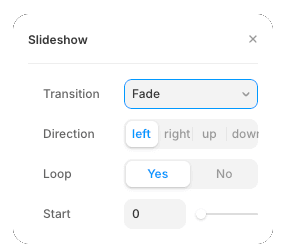
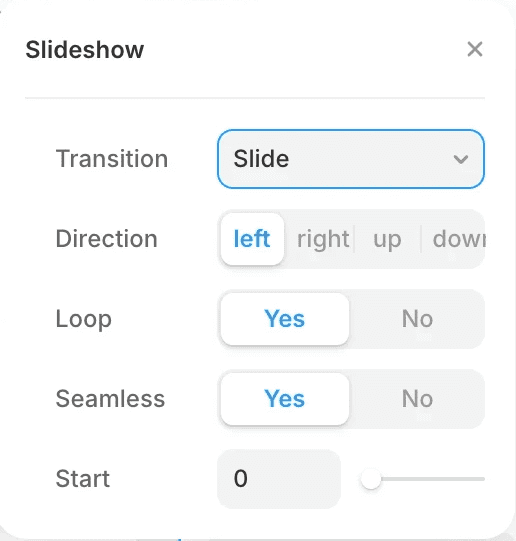
5. Slideshow (Transitions Logic)
Defines how slides transition and loop in carousel mode.
Used to control direction, looping behaviour, starting slide, and transition type.
"transitionMode"→"slide" | "fade""direction"→ "left" | "right" | "up" | "down""loop"→ Enable infinite loop"seamlessLoop"→ Smooth infinite transition"startIndex"→ Initial slide (0-based)
6. SIDE PEEK (Slideshow – Animated Preview Panel)
Controls the preview of adjacent slides.
Used to provide visual context, emphasize navigation direction, and enhance perceived depth. Support with 10+ transition options.
" sidePeekSize" → Acceleration multiplier. Higher = faster acceleration
"dragTimeConstant"→ Width/height of peeked neighbor (px)"sidePeekMode"→ "auto" | "both" | "direction""overrideSlideshow"→ Use these settings instead of slideshow.sidePeek"size"→ Width/height of peek (px)"mode"→ "auto" (direction-aware) | "both" (both sides) | "direction" (specific)"centerFirstSlide"→ Center first slide initially" inactiveOpacity"" inactiveBlur""inactiveScale""inactiveOverlayColor""inactiveOverlayOpacity""transitionType"→ "tween" | "spring""transitionDurationMs"→ 100–1000 ms"transitionEasing"→ "easeOut" | "easeInOut" | "linear" | "custom""transitionBezier"→ Custom cubic-bezier (if easing="custom")"transitionStiffness"→ Spring: 1–200 (higher = snappier)"transitionDamping"→ Spring: 1–50 (higher = less bounce)
7. SNAP (Only Slideshow)
Definisce come e quando la presentazione si blocca su una diapositive dopo l'interazione. Utilizzato per creare una navigazione precisa e controllata dopo l'input di trascinamento o di rotella.
"durationMs"→ Durata dell'animazione snap (ms)"easing"→ "morbido" (simile a una molla) | "molla""bounce"→ Quantità di rimbalzo della molla (0–1)
8. AUTOPLAY
Controls automatic slide movement.
Used to define whether the slideshow advances by time intervals or scrolls continuously.
"mode"→ "interval" (step-wise) | "continuous" (smooth scroll)"intervalMs"→ Milliseconds between steps (interval mode)"speed"→ Multiplier (0.5–2.0)"pauseOnHover"→ Pause when the user hovers"reverseOnHover"→ Reverse direction on hover
9. INTERACTIONS
Manages user input behaviour (drag, wheel, keyboard, tap).
Used to fine-tune responsiveness and interaction sensitivity.
"dragElasticity"→ 0–1 (higher = bouncier)"dragThresholdPx"→ Minimum drag distance to trigger (px)"wheelPower"→ Scroll sensitivity"wheelSnapDebounceMs"→ Debounce snap-to after scrolling"wheelAtEndsPassThrough"→ Allow parent scroll at carousel bounds"tapNavigation"→ Tap to navigate (auto-detects slides)"keyboardEnabled"→ Arrow keys
10. SCROLL (Axis Control)
Defines which scroll directions are allowed.
Used to constrain movement to horizontal, vertical, both, or automatic based on layout.
"axis"→ "automatic" | "horizontal" | "vertical" | "both"
11. EFFECTS (Hover & Performance)
Adds gradient fading at container edges.
Used to visually soften cut-off content and indicate overflow or continuity.
"hoverMode"→ "auto" | "horizontal" | "vertical" | "both""hoverScale"→ Zoom scale on hover (if enabled)"hoverBlur"→ Blur amount on hover (px)
12. FADE EDGES (Gradient Vignette)
Controlli feedback visivo basato sul passaggio del mouse.
Utilizzato per aggiungere interazioni di zoom o sfocatura sottili senza influire sulla logica di layout.
"mode"→ "dynamic" (horizontal/vertical based on layout) | "always" (both axes)"strength"→ Opacity multiplier (0–1)"size"→ Fade distance (px)
13. IMAGE (Stile e vestibilità)
Controls how images are rendered and cropped.
Used to manage aspect ratio, object fit, focal point behavior, and image styling.
"borderRadius"" background"→ Background colour"objectFit"→ "cover" | "contain" | "scale-down" | "contain-blur" | "contain-blur-overlay""respectFocalPoint"→ Use CMS focal points"aspectMode"→ "auto" | "preset" | "custom""aspectPreset"→ "1:1" | "4:5" | "3:4" | "9:16" | "16:9" | "4:3" | "3:2" | "2:3" | "21:9" | "2:1""aspectCustom"→ Custom aspect ratio (if aspectMode="custom")"cover"→ Fill container, crop excess"contain"→ Fit within container, letterbox"scale-down"→ Scale down to fit, never upscale"contain-blur"→ Contain with blurred background fill"contain-blur-overlay"→ Contain with blurred background overlay + semi-transparent image on top
14. CONTENT (Allineamento – Solo componenti)
Controls alignment of non-image canvas components.
Used when slides contain full components like frames, videos, or interactive elements.
Visible only when canvasItemsMode: "content"
"alignX""alignY""Fit"→ Adjusts the size of the connected canvas element:"Auto"→ Automatically adjusts the element's size based on the connected component."Fill"→ Forces the element to 100% of the slide’s size.
15. DOTS (Pagination)
Manages pagination indicators.
Used to show slide position, enable direct navigation, and customize visual style.
"showDots""dotsActiveColor""dotsInactiveColor""dotsActiveImage"→ Custom active dot image URL"dotsInactiveImage"→ Custom inactive dot image URL"dotWidth""dotHeight""dotRadius""dotsGap""dotsInset""pillBackground""pillRadius""pillPaddingX""pillPaddingY""dotsHoverEffect""dotsHoverScale""dotsPressEffect""dotsPressScale"
16. ARROWS (Navigation)
Controls previous/next navigation buttons.
Used to define placement, size, styling, and interaction feedback.
"showArrows""arrowsPosition"→ "inside" | "outside" | "edge""arrowsEdgePlacement"→ "top" | "center" | "bottom" (if position="edge")"arrowsButtonSize""arrowsBackground""arrowsIconColor""arrowsIconColor""arrowsHoverEffect""arrowsHoverScale""arrowsPressEffect""arrowsPressScale""arrowsInset""arrowsBlur""arrowsLeftCustom""arrowsRightCustom"→ Custom SVG or text"arrowsLeftImage""arrowsRightImage"→ Custom right arrow image
17. Fade Transitions
Controls previous/next navigation buttons.
Used to define placement, size, styling, and interaction feedback.
"durationMs""easing"→ "easeOut" | "easeInOut" | "linear" | "custom""bezier"→ Custom cubic-bezier (if easing="custom")Transition Mode
opacity
slide
scale
blur
opacity+slide
opacity+scale
opacity+blur
slide+scale
slide+blur
scale+blur
opacity+slide+scale
opacity+slide+blur
opacity+scale+blur
slide+scale+blur
opacity+slide+scale+blur
Some effects may not render in canvas - we will gladly receive your feedback and improve/update the component making it better every time.
CONTINUOUS UPDATES
Slideshow Master Pro
Framer Component
Full Access
C O N T I N U O U S U P D A T E S
Peek Drawer Pro
Framer Component
Full Access